How to Edit Client Details in Navaro
This guide demonstrates the process of navigating to a client's profile, accessing the edit screen, updating basic information, and saving the changes in the Navaro system.
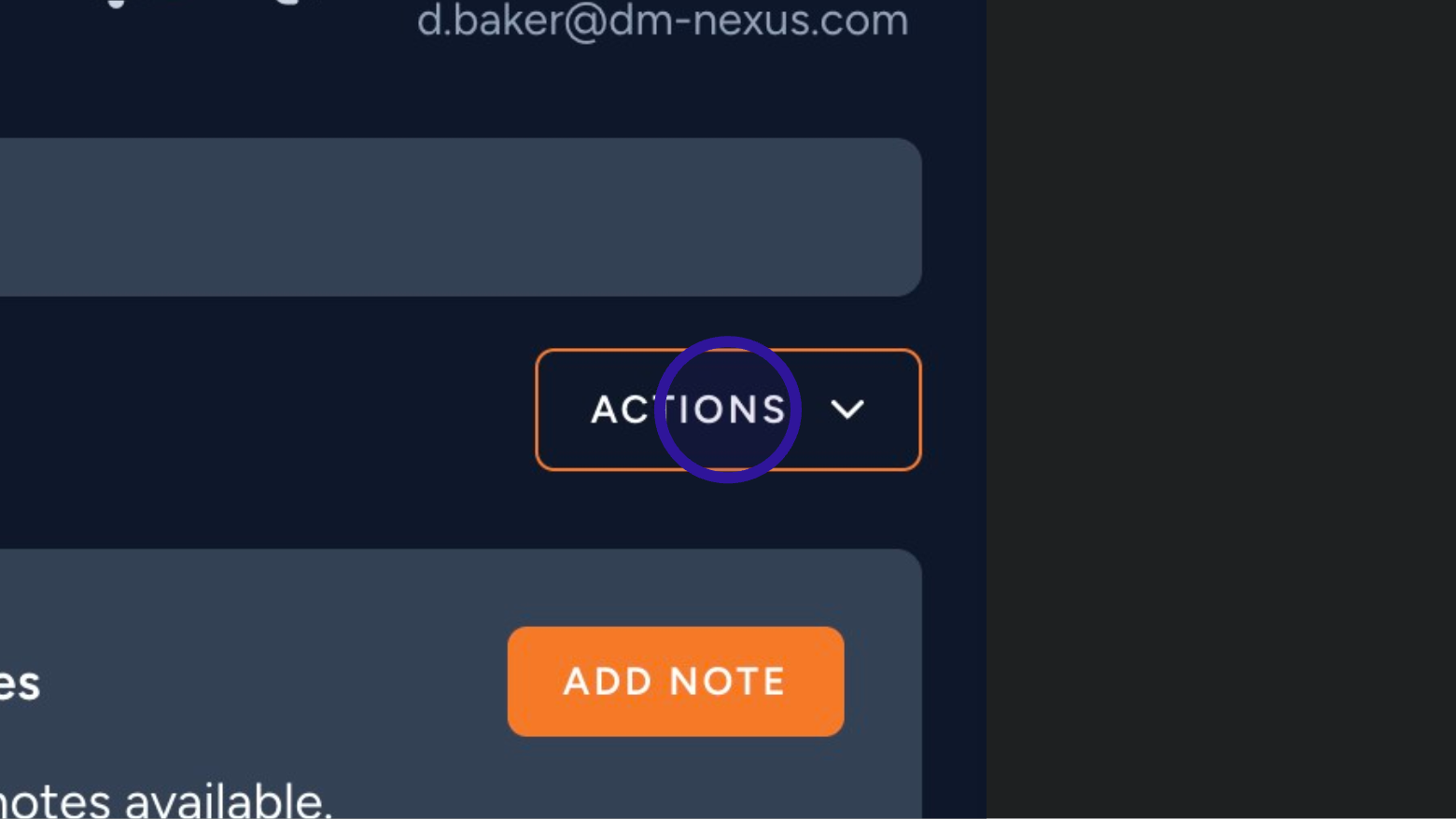
Access Client Actions Menu
From the client overview screen, click the 'ACTIONS' button located in the top right section of the client information panel.
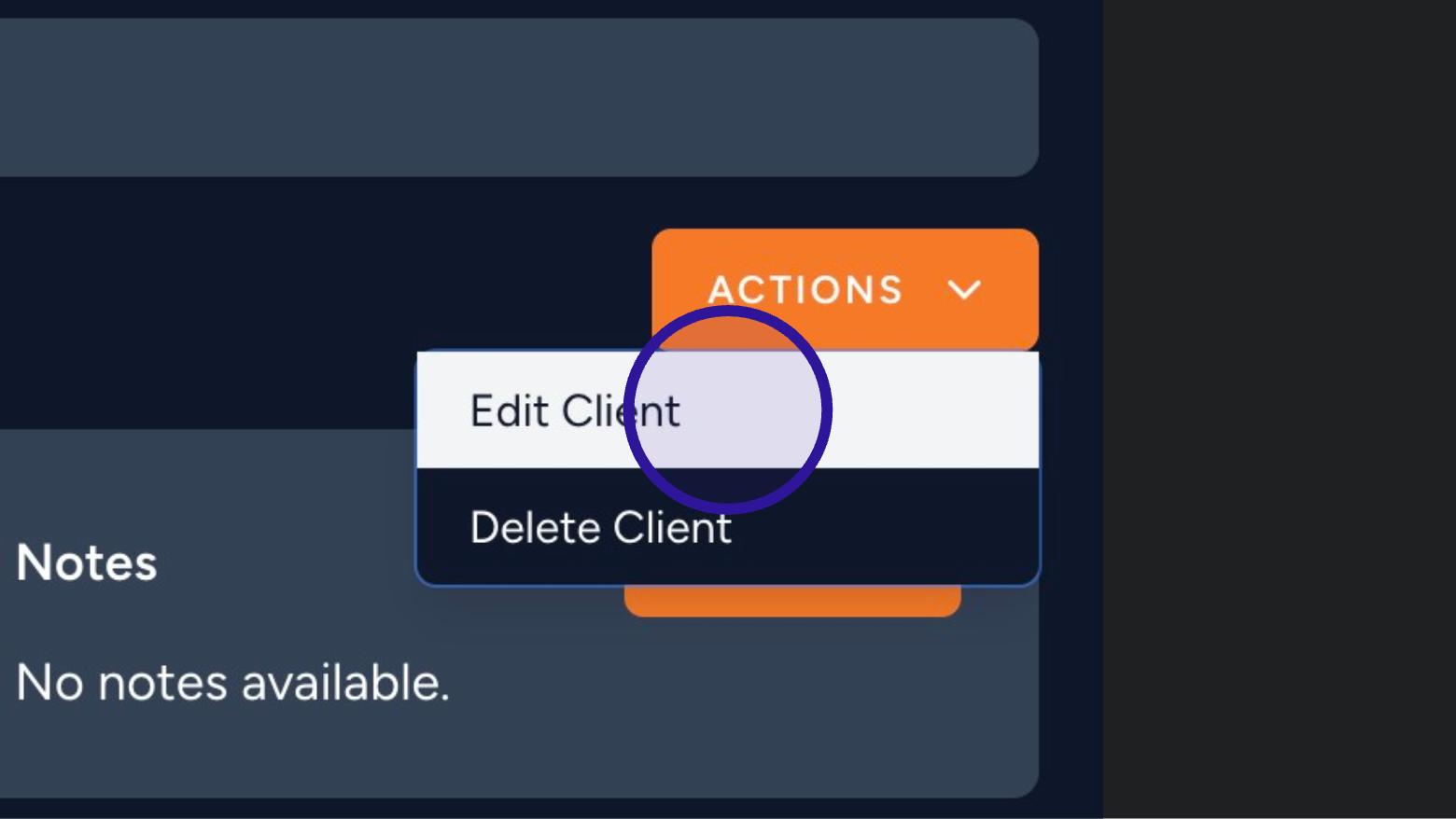
Select Edit Client Option
In the dropdown menu that appears after clicking 'ACTIONS', select 'Edit Client'.
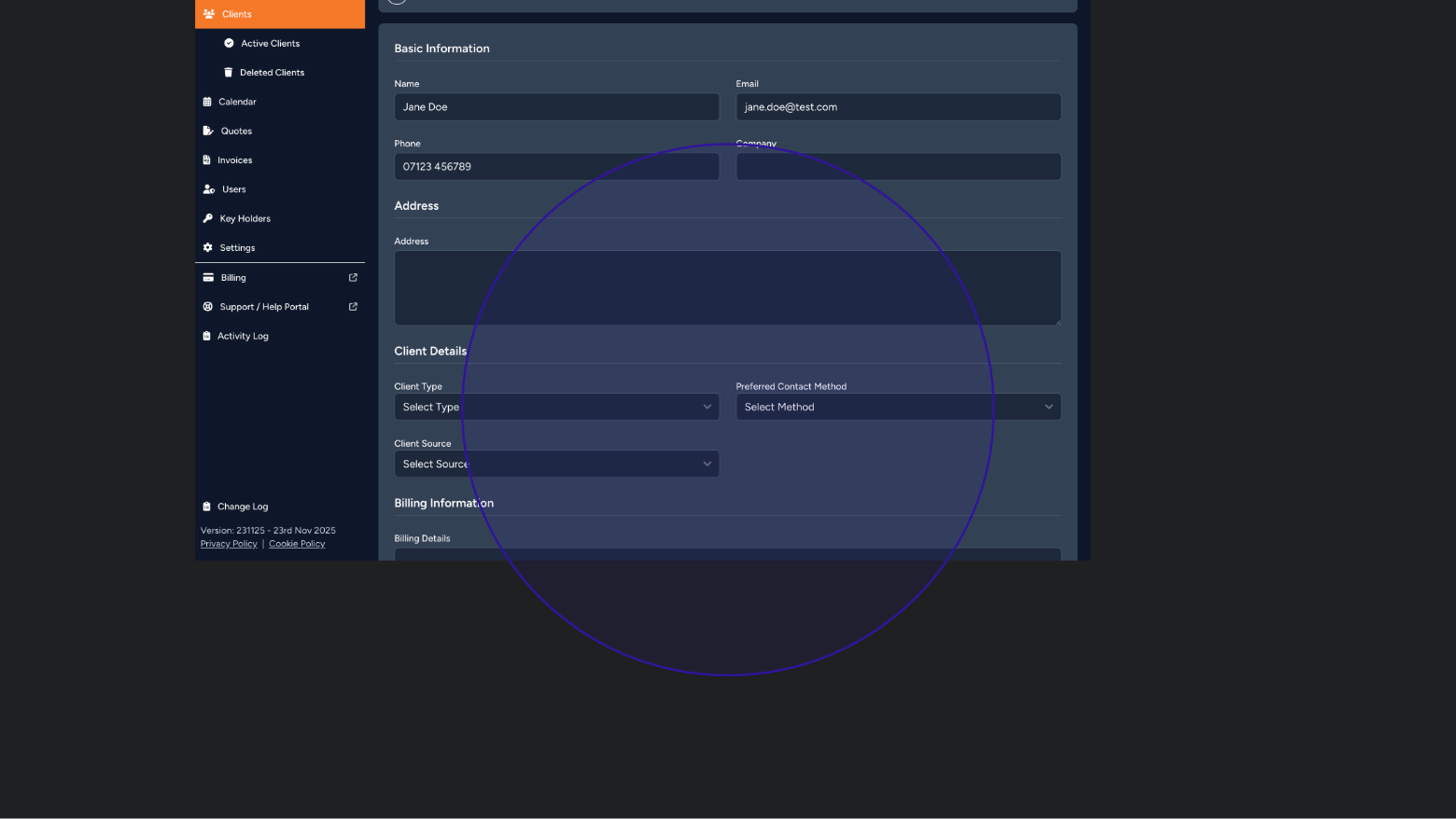
Configure Client Details
Continue reviewing and update the required fields under 'Client Details', such as selecting the 'Client Type' and 'Preferred Contact Method'.
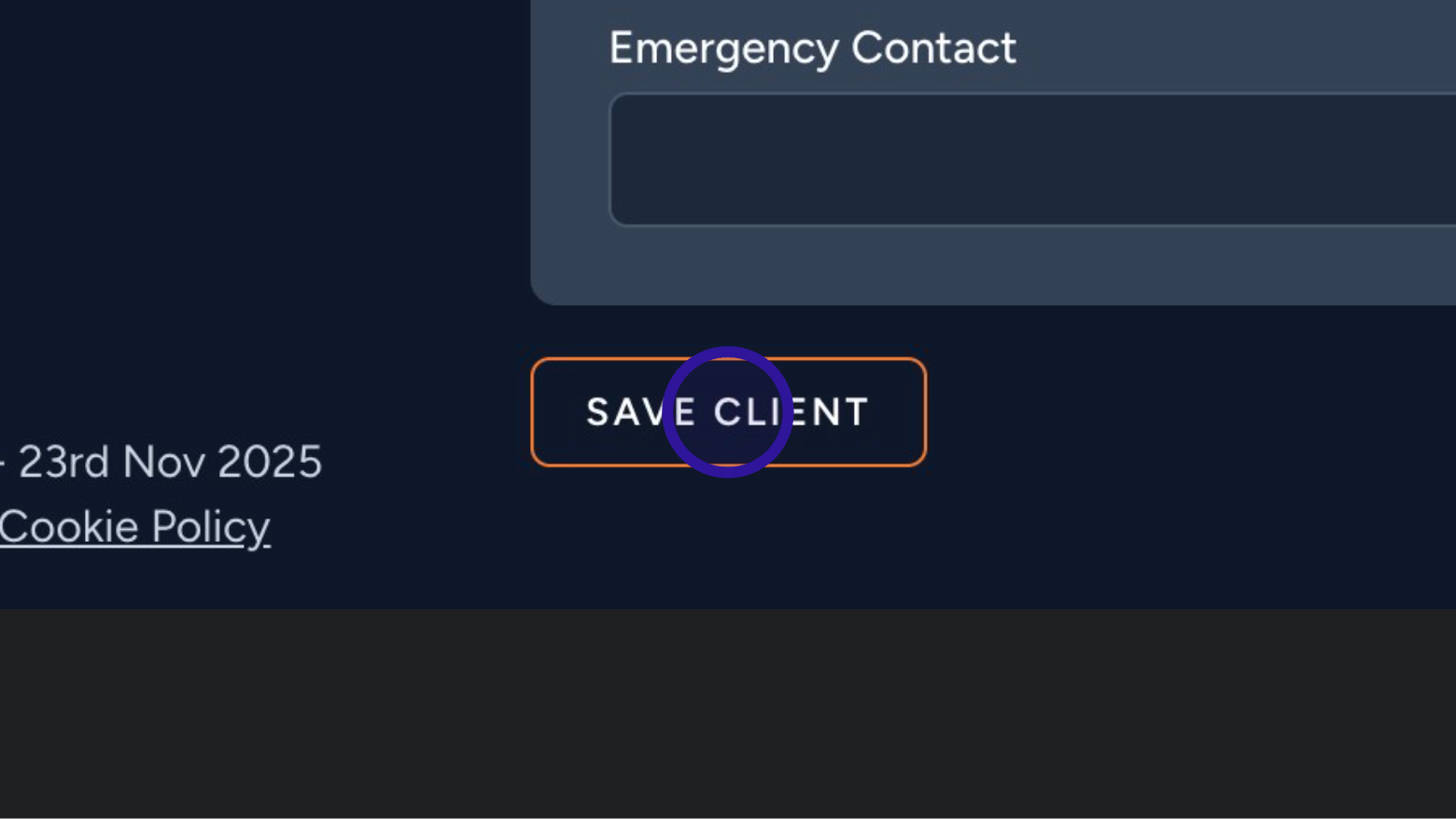
Save Updated Client Information
Scroll to the bottom of the editing form and click the 'SAVE CLIENT' button to finalize and apply all the changes made to the client's profile.
Was this article helpful?
That’s Great!
Thank you for your feedback
Sorry! We couldn't be helpful
Thank you for your feedback
Feedback sent
We appreciate your effort and will try to fix the article